
In the previous videos, we were automating the calculation of overtime. The automation is working well, but we need to add a new criterion to our overtime calculation; if an employee works for more than 2 hours of overtime in a day, we want to pay the first 2 hours of overtime at 1.5 times employee’s hourly rate and pay the rest of the overtime at 2 times the hourly rate. This help document describes how you can configure Lenvica HRMS to get this done.
Step 1: Review Attendance
As you see, this employee has worked 3 hours of overtime.
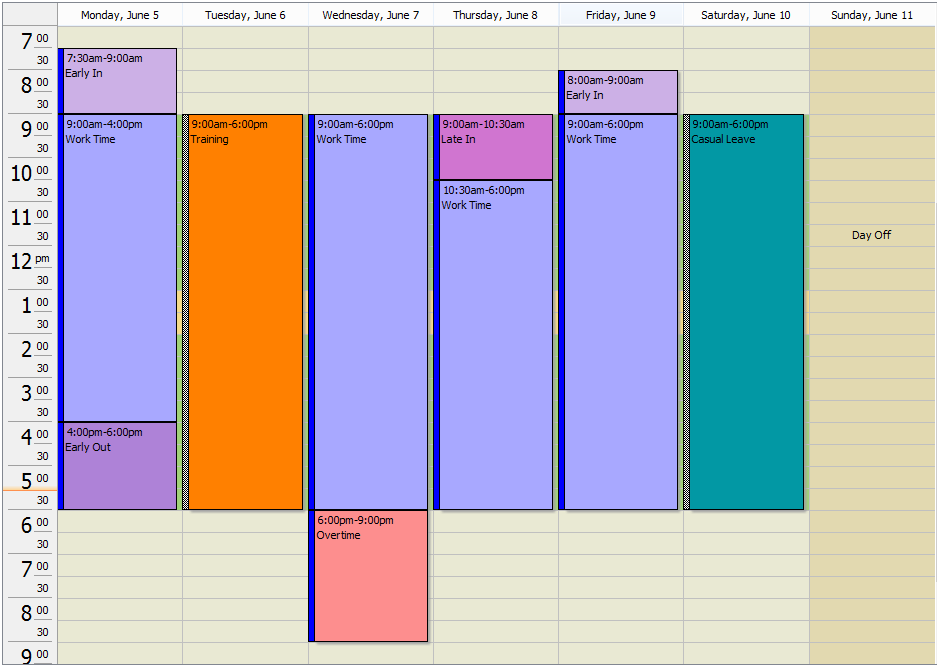
Now, we want to pay him the first 2 hours at 1.5 times his hourly rate and the additional hour at 2 times his hourly rate.
Step 2: Create Attendance Groups
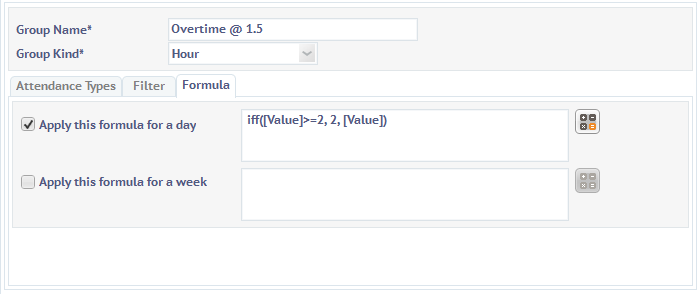
Let’s create attendance groups to implement this requirement.
The first attendance group called ‘Overtime @ 1.5’ calculates the hours of overtime to be paid at 1.5 times the hourly rate of the employee.
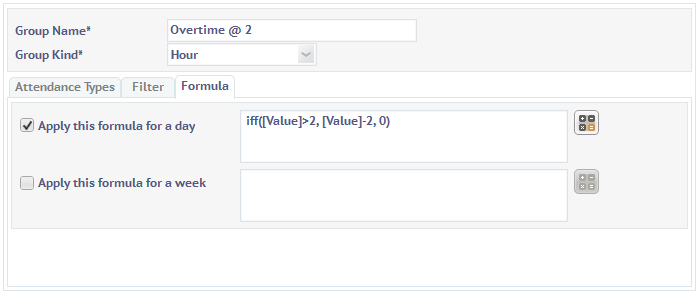
The second attendance group called ‘Overtime @ 2’ calculates the hours of overtime to be paid at 2 times the hourly rate of the employee.
Step 3: Review the Group Results
Now, let’s go to the attendance screen to check if the groups work as expected.
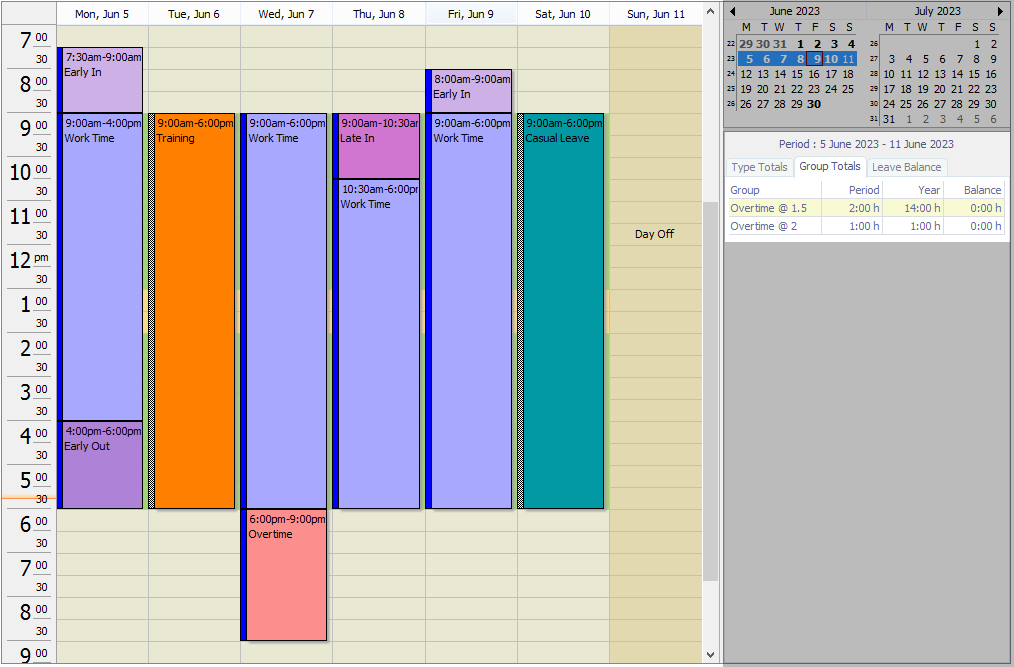
As you see, the groups now show Overtime @ 1.5 and Overtime @ 2.
Step 4: Use the Attendance Group in Overtime Calculation
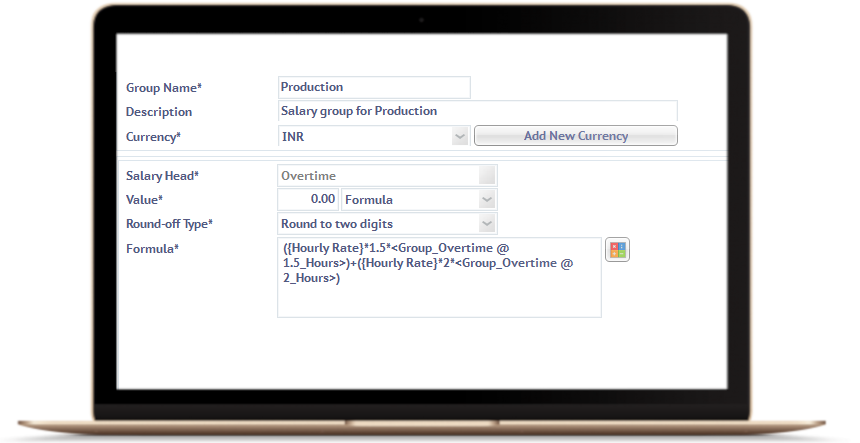
Step 5: Process Payroll
When you process payroll, the software will automatically calculate the overtime allowance.
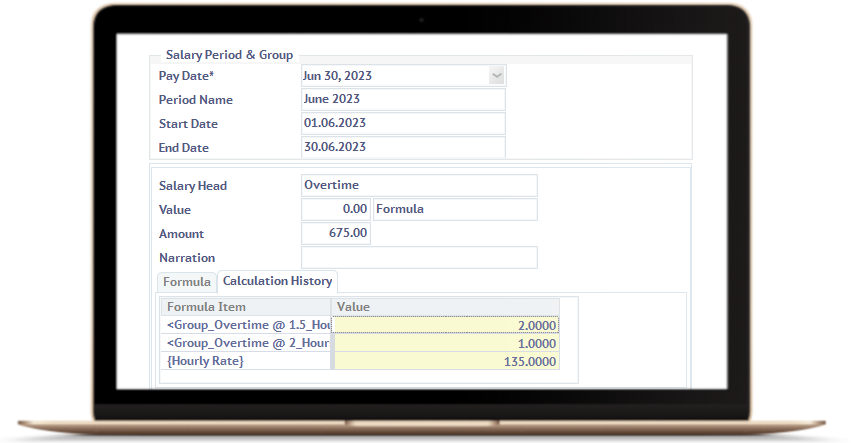
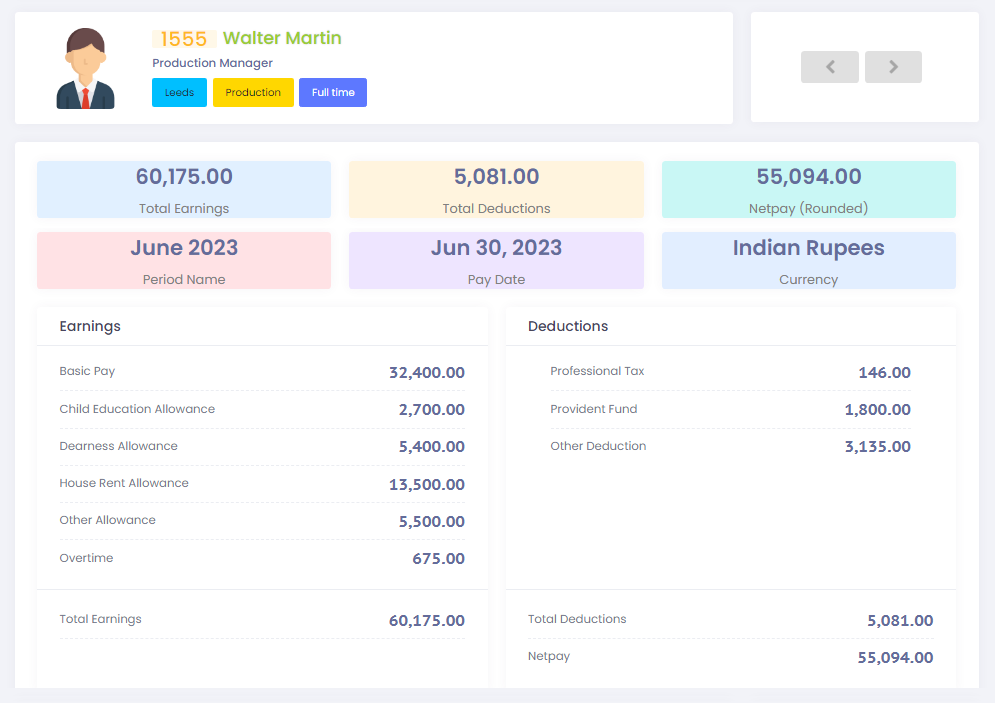
That’s all. We have successfully configured Lenvica HRMS to pay my employees for first 2 hours of overtime at 1.5 times the employee’s hourly rate and pay the rest of the overtime at 2 times the hourly rate
Fully Automated Attendance!
No manual intervention!
100% Accuracy!
Leave A Comment
You must be logged in to post a comment.