
In the previous videos, we were automating the calculation of overtime. The automation is working well, but my company has a flexible start time for shifts, so, employees can come in early or late. If an employee works beyond 8 hours, we want to pay him overtime for the extra hours he puts in. This help document describes how you can configure Lenvica HRMS to get this done.
Step 1: Review Attendance
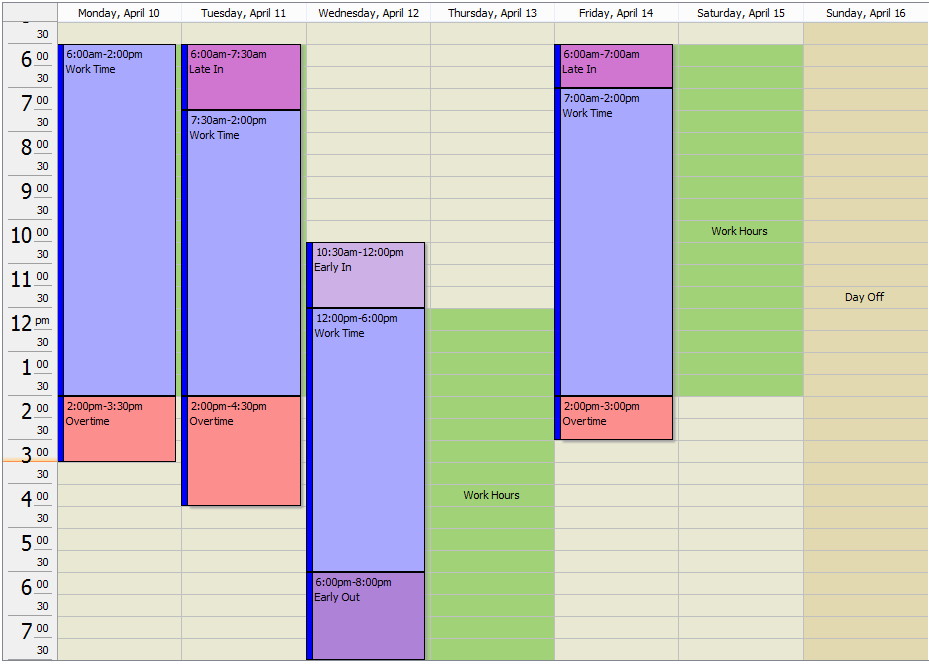
As you see, my employees are working on different shifts and as the start time is flexible, they come in a little early or late as per their convenience.
Now, I want to fully automate overtime calculation for my employees by specifying a simple rule. If an employee works beyond 8 hours, he gets paid overtime for the extra hours.
Step 2: Review Attendance Import Settings
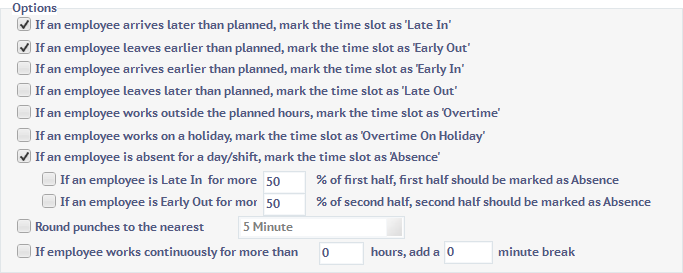
I’ve disabled Early In, Late Out, Overtime and so on from the import settings for my specific requirement.
Step 3: Create an Attendance Group
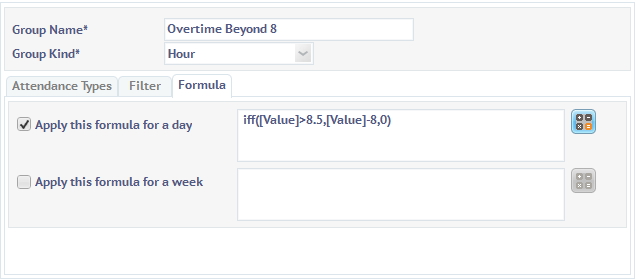
Let’s create an attendance group to implement this requirement. To calculate the net overtime, we will add the work hours.
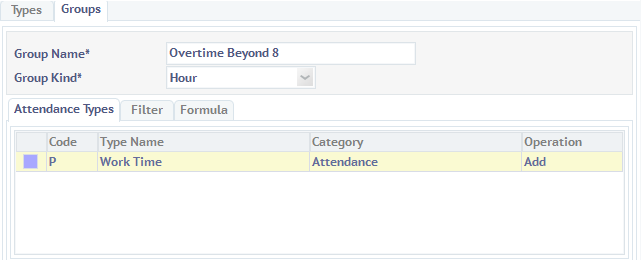
To ensure the result doesn’t fall below zero, let’s create a formula. Up to 30 minutes of overtime is ignored. And we don’t want the result to go below zero. So, the formula looks like this
Step 4: Review the Group Results
Now, let’s go to the attendance screen to check if the group works as expected.
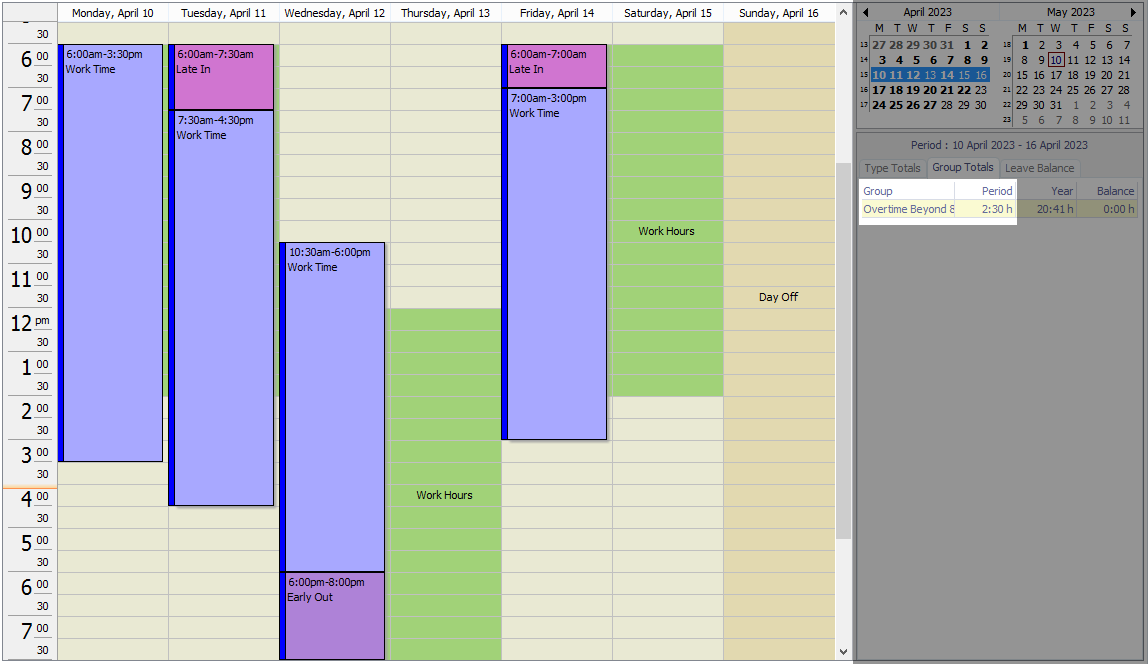
As you see, the group now shows net overtime for the period selected.
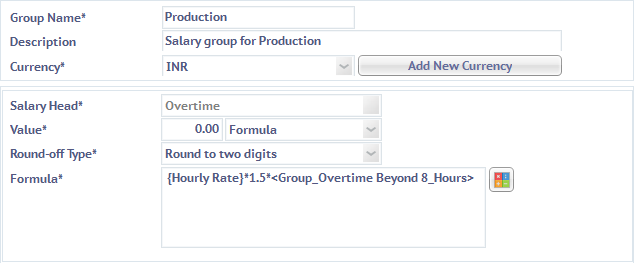
Step 5: Use the Attendance Group in Overtime Calculation
Step 6: Process Payroll
When you process payroll, the software will automatically calculate the net overtime hours.
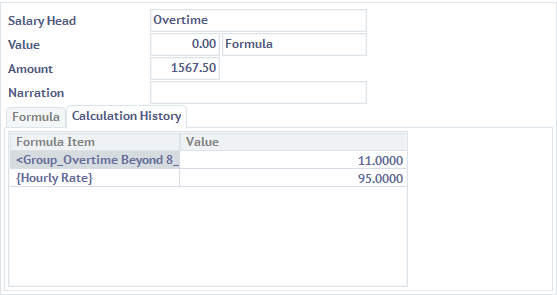
That’s all. We have successfully configured Lenvica HRMS to pay my employee for every hour of extra work beyond 8 hours of normal work.
Fully Automated Attendance!
No manual intervention!
100% Accuracy!
Leave A Comment
You must be logged in to post a comment.